ENGLISH PRIMARY · PRODUCT GUIDE英文為主 · 產品指南
How to use DeskRemote如何使用 DeskRemote
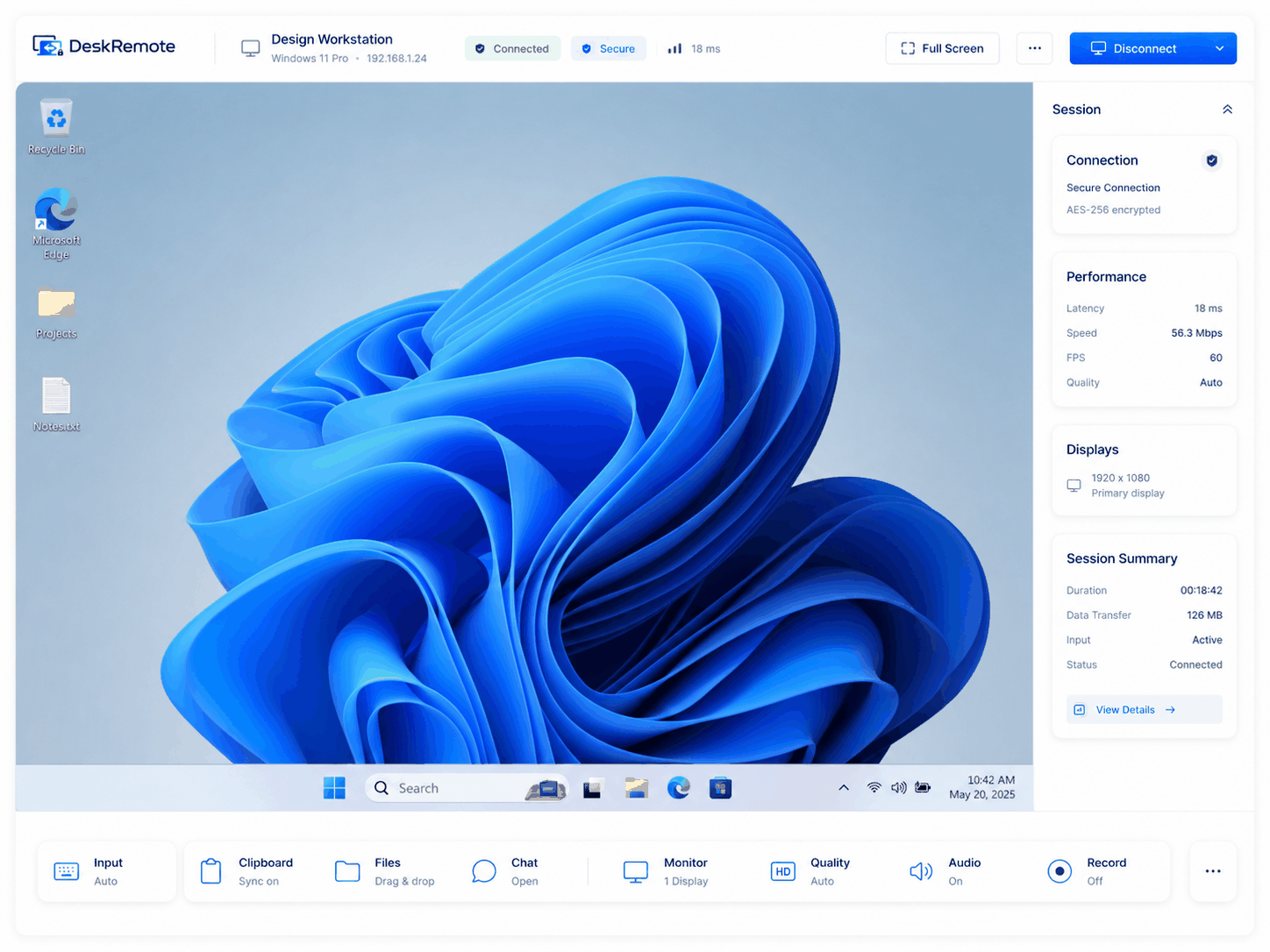
DeskRemote is personal remote-desktop software: install a client on devices you own or are authorized to access,
sign in to the control plane, and start an explicit remote session. On supported paths, session media is encrypted end-to-end; peer identity may still require safety-number verification (see Security).
Pro can be purchased through two channels — the Microsoft Store listing shown on Download once its launch gates pass,
or an online subscription hosted by a third-party payment processor once enabled — and this website never handles card details.
DeskRemote 是個人遠端桌面軟體:在您擁有或獲授權存取的裝置上安裝用戶端,登入控制平面後,明確啟動遠端工作階段。工作階段媒體預設採端對端加密。
Pro 可透過兩個通道購買——下載頁在上線 Gate 通過後顯示的 Microsoft Store 商店頁,或啟用後由第三方金流服務商代管的線上訂閱——本網站絕不經手卡片資料。
Paid public sale is not open unless Download shows a verified Store listing for the exact release.除非下載頁顯示該正式版本的已驗證商店頁面,否則公開付費販售尚未開放。
1. Install1. 安裝
- Open Download.開啟下載頁。
- Choose your platform:選擇您的平台:
- Windows — the single Microsoft Store Host + Viewer product when listed; DeskRemote Server is separate and excluded——上架後為單一 Microsoft Store Host+Viewer 產品;DeskRemote Server 為獨立服務,不包含在內
- macOS / iOS — Apple App Store when listed——上架後透過 Apple App Store
- Android — Google Play when listed——上架後透過 Google Play
- Linux — published AppImage / .deb packages when available——提供時為已發佈的 AppImage/.deb 套件
- Browser瀏覽器 — Web viewer for temporary support-code connections——網頁檢視器,用於臨時支援碼連線
- Install only from official store or this site’s download links. Never install a remote-access tool you did not request.僅從官方商店或本網站的下載連結安裝;切勿安裝您未主動要求的遠端存取工具。
2. Create an account and sign in2. 建立帳號並登入
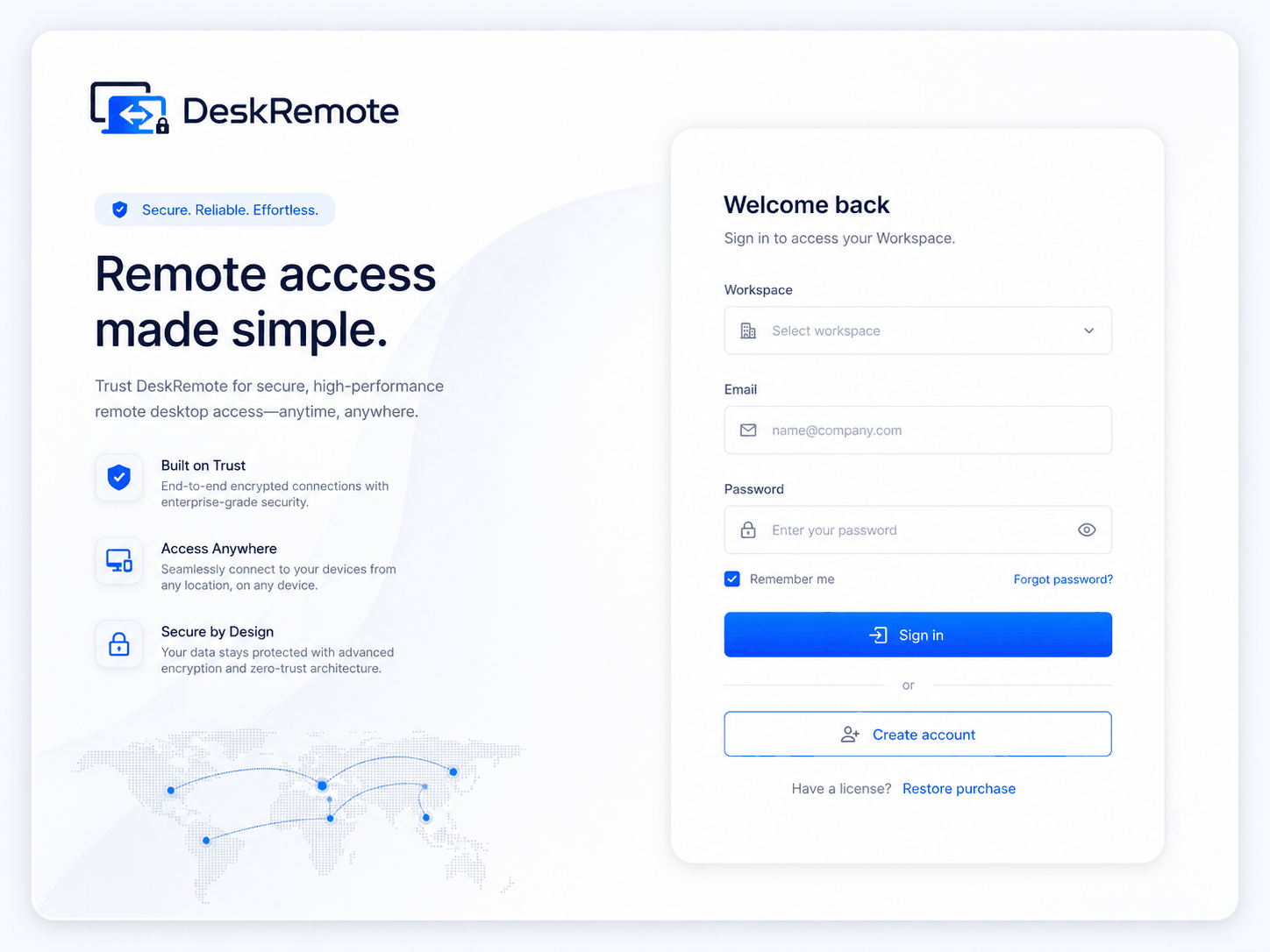
- Go to Create account or Sign in.前往建立帳號或登入。
- Use a strong password. Enable 2FA when prompted (available on Free).使用高強度密碼;出現提示時啟用雙因素驗證(Free 即可使用)。
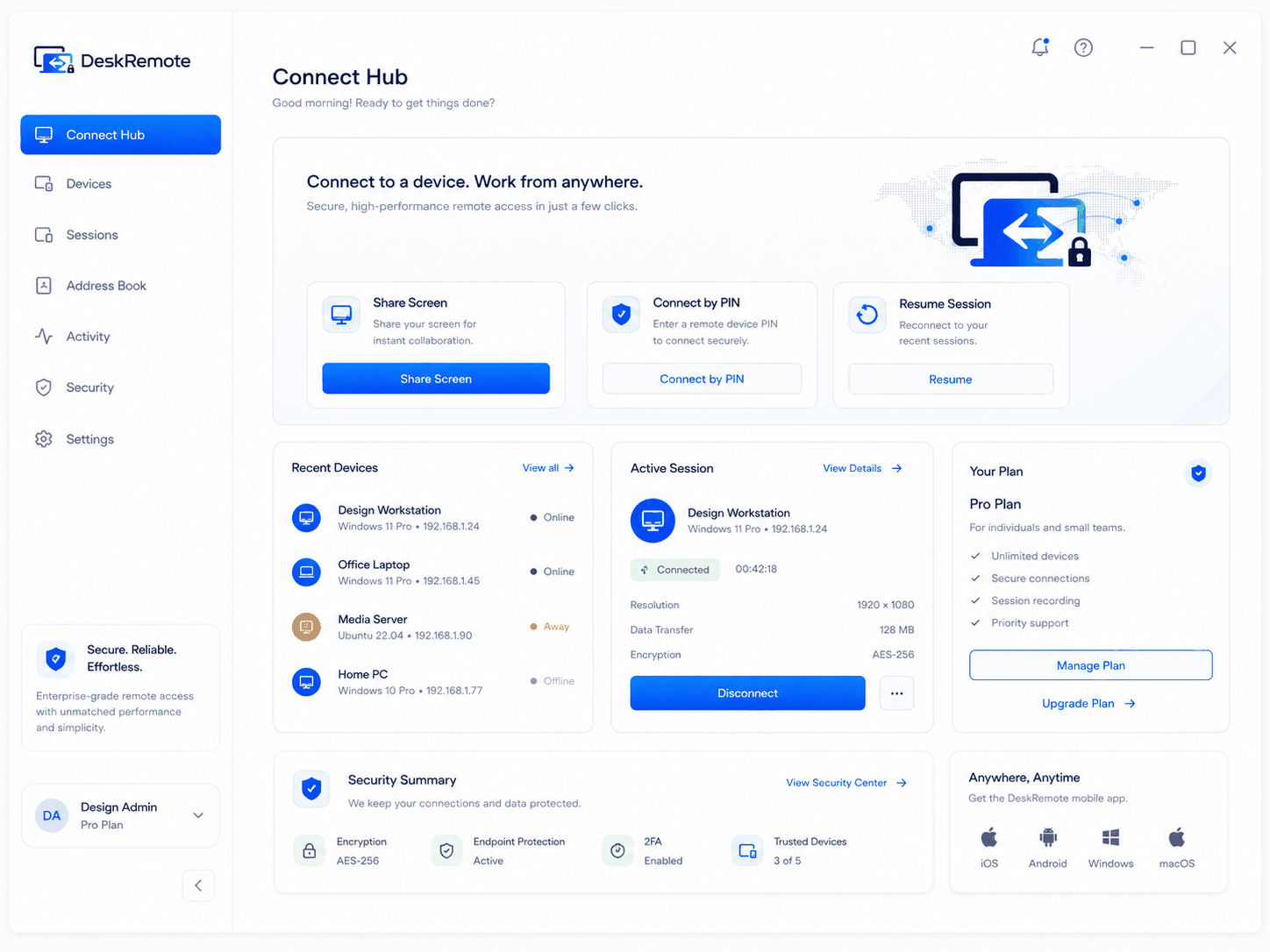
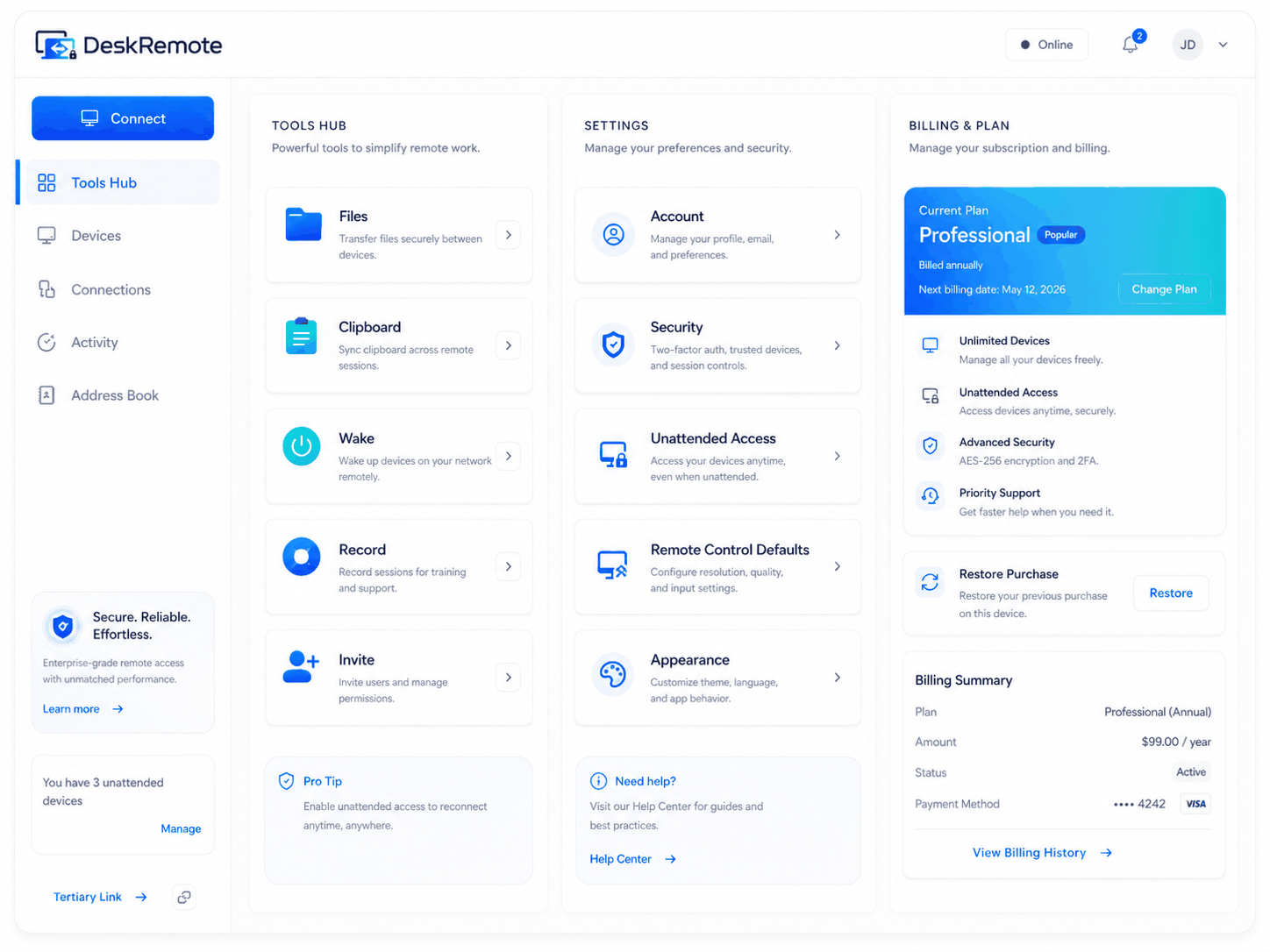
- After sign-in you reach the dashboard / connect hub for your personal workspace.登入後即進入個人工作區的儀表板/連線中心。
One owner account maps to one personal workspace. Paid purchases bind to that owner after store verification.一個擁有者帳號對應一個個人工作區;付費購買經商店驗證後綁定該擁有者。
3. Connect to a machine you own3. 連線到您擁有的機器
- On the host computer, install DeskRemote and sign in (or complete unattended enrollment if you configured it locally with explicit opt-in).在主控端(host)電腦安裝 DeskRemote 並登入(若已在本機明確啟用設定,也可完成無人值守註冊)。
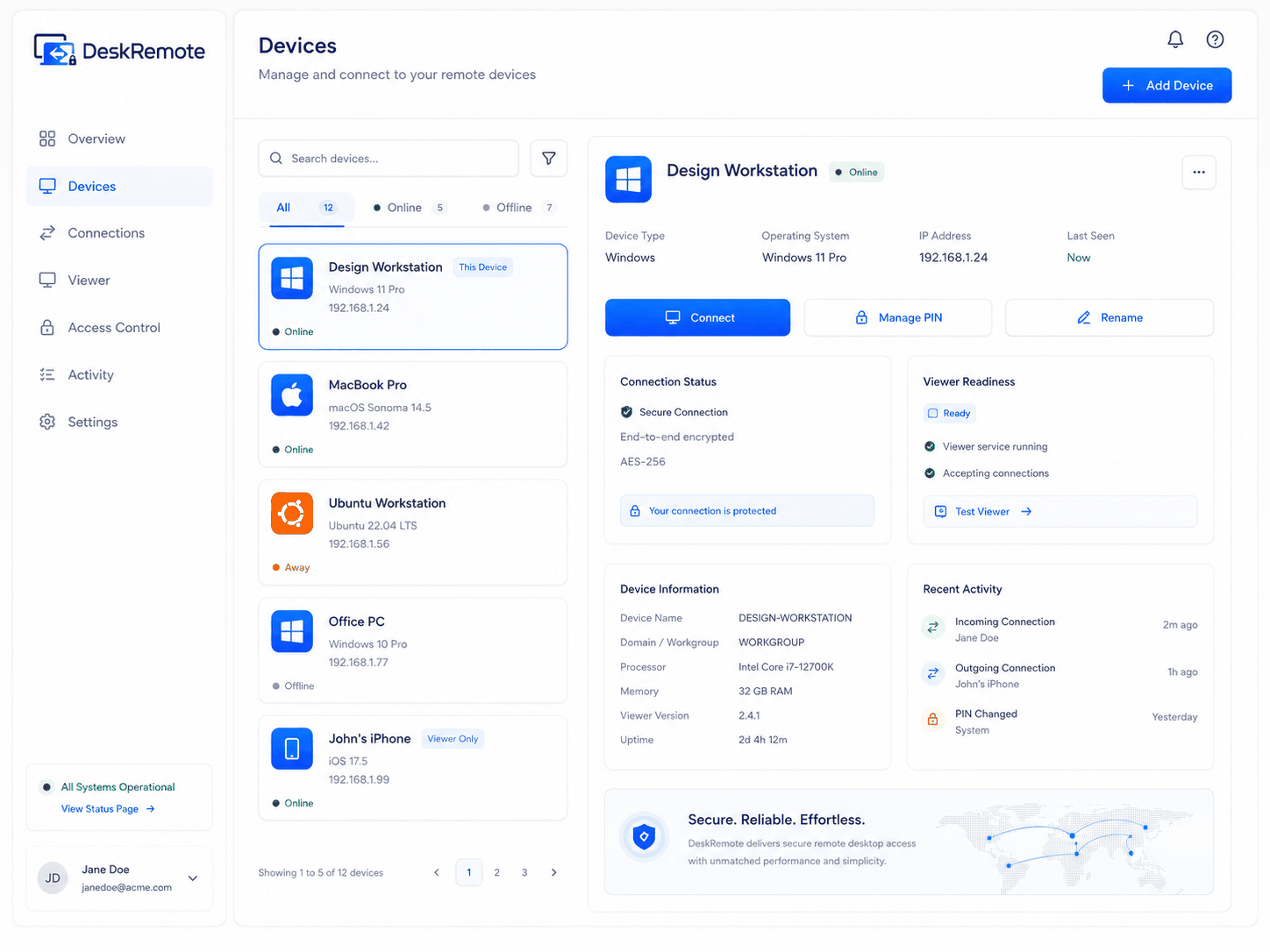
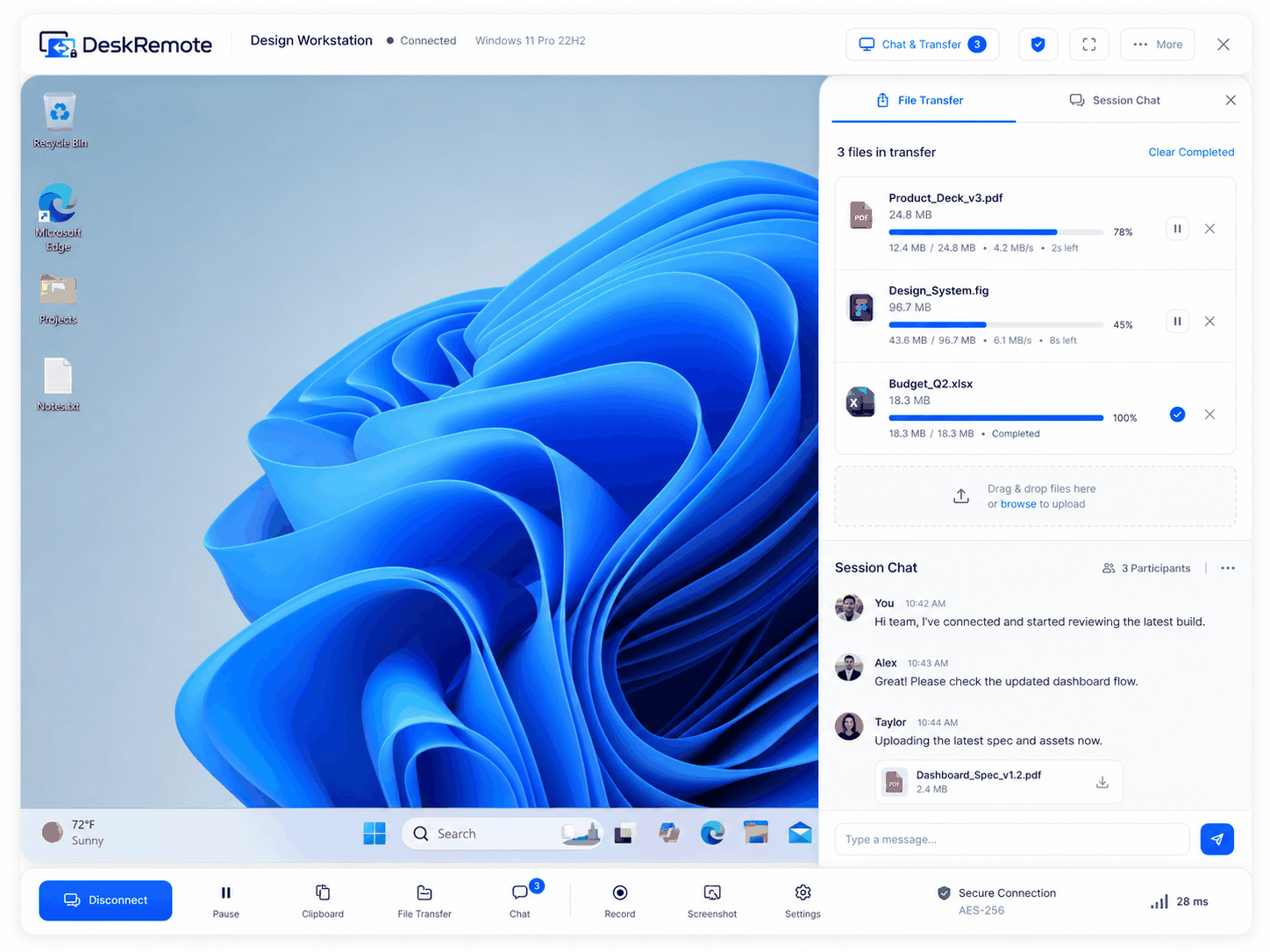
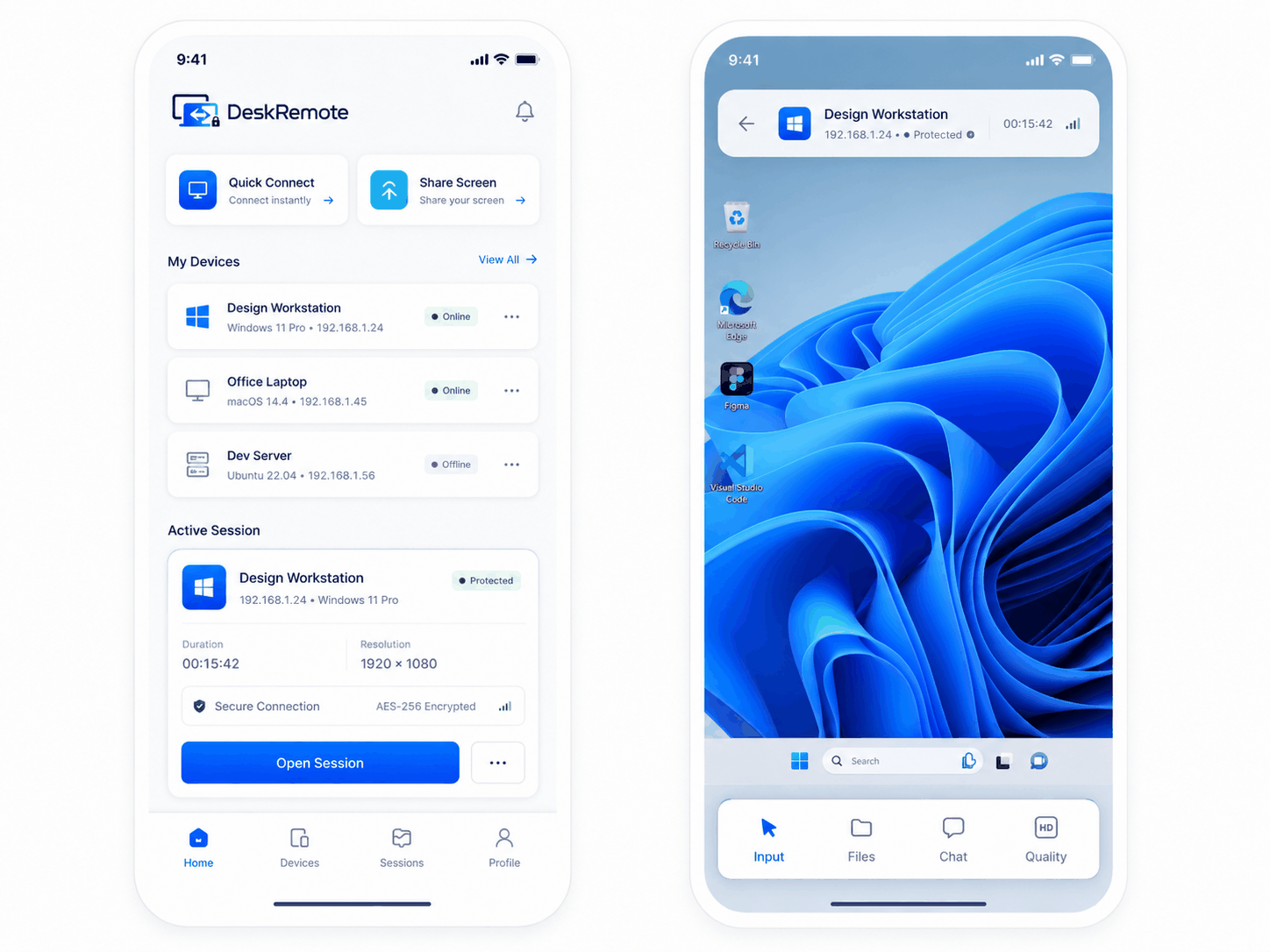
- On the viewer computer or phone, sign in and select the device, or use a short-lived support code in the web viewer.在檢視端(viewer)電腦或手機登入並選取裝置,或在網頁檢視器使用短效支援碼。
- Accept any host-side permission prompts (screen capture, input, accessibility) required by the operating system.接受作業系統要求的主控端權限提示(螢幕擷取、輸入、輔助使用)。
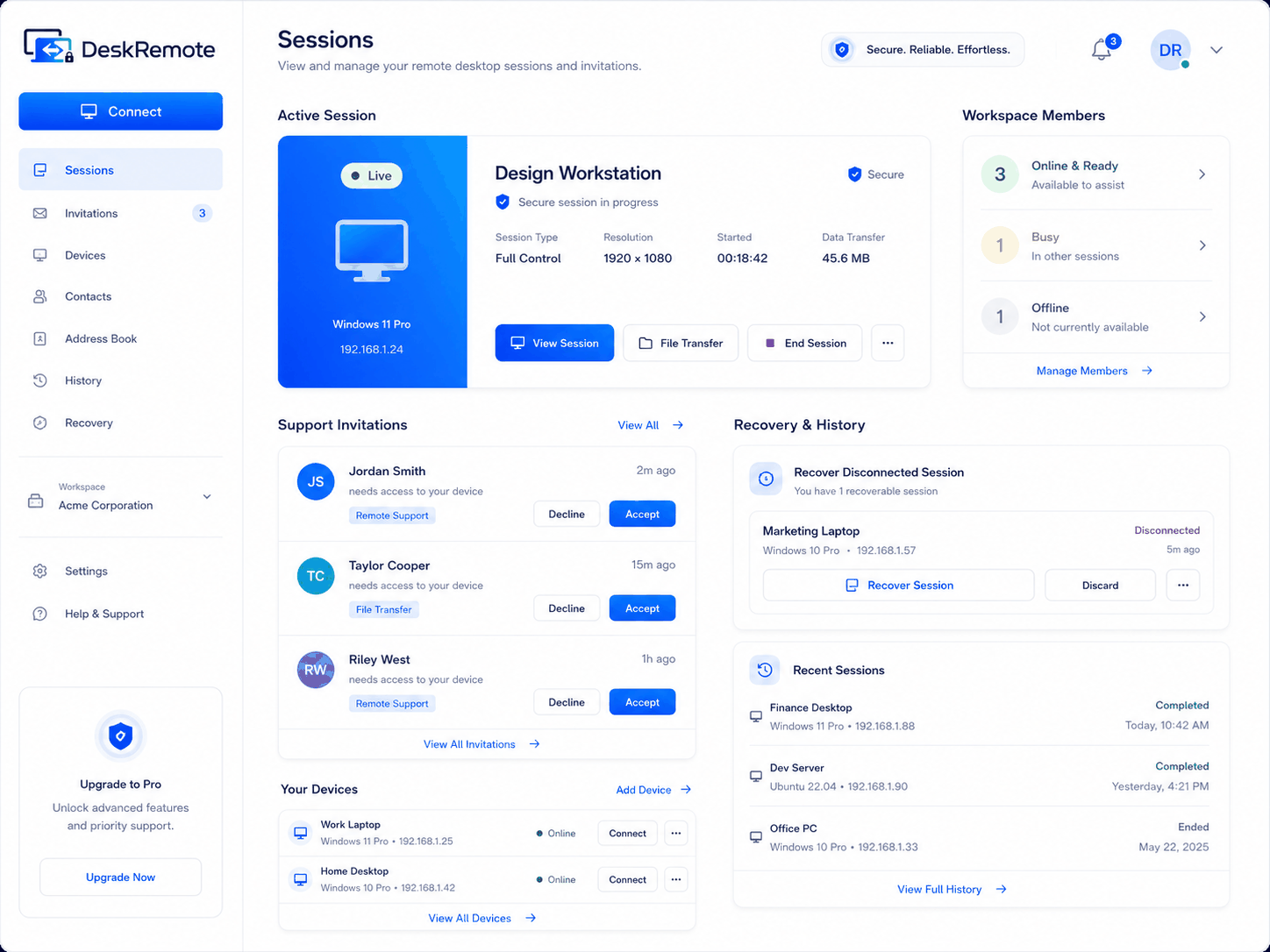
- Confirm the remote session is expected and visible. End the session with the on-screen stop / disconnect control when finished.確認遠端工作階段是您預期且可見的;結束時請使用畫面上的停止/中斷控制項。
Authorized use only.僅限授權使用。 Access only devices you own or have explicit permission to control. Hidden or unauthorized remote access is prohibited by the Terms.只能存取您擁有或已獲明確授權控制的裝置;條款禁止隱藏或未經授權的遠端存取。
4. Security model (plain language)4. 安全模型(白話說明)
- Account security帳號安全 — password + optional 2FA; short-lived tokens.——密碼+可選的雙因素驗證;短效權杖。
- Session media工作階段媒體 — end-to-end encryption by default so the control plane does not hold media keys.——預設端對端加密,控制平面不持有媒體金鑰。
- Transport傳輸 — direct peer-to-peer when possible; TURN relay when the network requires it.——可行時採點對點直連;網路環境需要時改用 TURN 中繼。
- Consent同意 — attended sessions require host awareness; unattended access requires explicit local opt-in and can be revoked.——有人值守工作階段須主控端知情;無人值守存取須在本機明確啟用,且可隨時撤銷。
5. Free vs Pro5. Free 與 Pro 比較
| Plan方案 | Devices裝置數 | Concurrent sessions同時連線數 | Commercial use商業用途 | How to buy購買方式 |
|---|
| Free | 3 | 1 | Personal non-commercial個人非商業 | No purchase無須購買 |
| Pro Monthly / AnnualPro 月訂閱/年訂閱 | 200 | 3 | Allowed for the individual owner允許個人擁有者商用 | Microsoft Store subscription when listed, or online subscription via a third-party payment processor when enabled上架後透過 Microsoft Store 訂閱,或啟用後經第三方金流服務商線上訂閱 |
Historical Pro Perpetual entitlements remain restorable for existing customers but are not offered to new customers. See full prices and Store notes on Pricing. Website never accepts card details. Refunds: Refund policy.既有的 Pro Perpetual(永久授權)權益仍可供舊客戶還原,但不再提供給新客戶。完整價格與商店說明請見方案頁。本網站絕不受理卡片資料。退款請見退款政策。
6. Restore a purchase6. 還原購買
- Existing customers may restore in the platform Store app. New subscriptions are offered only through an enabled official Store listing shown on Download or, when enabled, the online subscription checkout hosted by the third-party payment processor.舊客戶可在平台商店 App 中還原購買。新訂閱僅透過下載頁所示、已啟用的官方商店頁面,或(啟用後)由第三方金流服務商代管的線上訂閱結帳提供。
- Open DeskRemote → billing / settings → refresh entitlement (or re-sign-in).開啟 DeskRemote → 帳務/設定 → 重新整理權益(或重新登入)。
- If status stays Free, open Billing while signed in, then contact support with platform + product name + approximate UTC time (no full receipt).若狀態仍為 Free,請在登入狀態下開啟帳務頁,再向支援提供平台+產品名稱+大約的 UTC 時間(無須完整收據)。
7. If something looks wrong7. 發現異常時
- End the remote session immediately using the visible stop control.立即使用可見的停止控制項結束遠端工作階段。
- Sign out other sessions, change your password, and review device trust / 2FA.登出其他工作階段、變更密碼,並檢查裝置信任/雙因素驗證。
- Contact support with a redacted diagnostic report only.聯絡支援時僅提供已去識別化的診斷報告。